One-line install
- Detect your OS and CPU architecture (amd64 / arm64, including macOS Rosetta 2).
- Download the matching binary, verify SHA256, and place it on your PATH.
The script no longer bundles Claude Code. reclaude downloads Claude Code automatically the first time you run it (no VPN needed); if you already have the official Claude Code, reclaude uses yours and won’t override it.
Windows notes
- Use a normal PowerShell window, don’t “Run as administrator”. The installer writes to
%LOCALAPPDATA%\Programs\reclaude\bin(under your user home); admin PowerShell uses a separate PATH from your daily shell and will leave thereclaudecommand unreachable. - A 64-bit PowerShell is required. The script self-checks and exits if it detects 32-bit.
- Antivirus / EDR false positives: the script verifies SHA256 on the download, but some corporate antivirus tools may block writes. If you see
Access is denied, disable the relevant protection or whitelist%LOCALAPPDATA%\Programs\reclaudeand retry. - Claude Desktop:
reclaude appdoesn’t use the Claude Desktop you installed yourself; the first run downloads a separate ReClaude build (a few hundred MB), no path to configure.
Common flags
macOS / Linux (install.sh):
For example, pin to a specific version:
install.ps1) the one-line iwr | iex install can’t take arguments: to pin a version, set an environment variable, or download the script first and run it with parameters.
install.ps1 also accepts -Dir (default %LOCALAPPDATA%\Programs\reclaude\bin), -Force and -Uninstall.
Manual download
If the script can’t run, grab the binary directly:
URL pattern:
https://dl.reclaude.ai/latest/<filename>. After downloading, mark it executable and put it on your PATH, then run reclaude setup to copy it into the standard location (this also creates the rec alias).
IDE extension setup
If you use the official Claude Code extension in VS Code, Cursor or Windsurf, configure it to launch Claude through reclaude. Otherwise, requests bypass reclaude and go straight to Anthropic.-
Open the extension settings (
Ctrl/Cmd + ,→ searchClaude Process Wrapper). - Find Claude Code: Claude Process Wrapper (description: Executable path used to launch the Claude process).
-
Set the executable path to
reclaudeand save.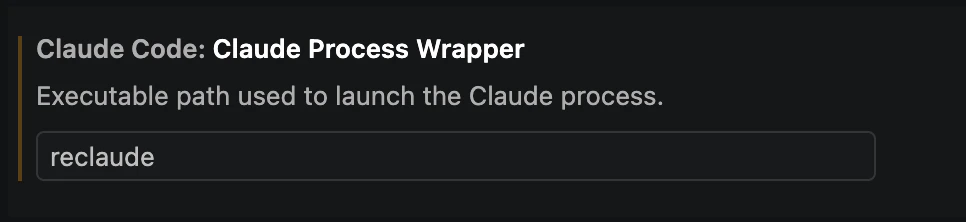
- Restart the IDE so the setting takes effect.
This is a built-in setting on the official Claude Code extension — no extra plugins required.