> ## Documentation Index
> Fetch the complete documentation index at: https://docs.reclaude.ai/llms.txt
> Use this file to discover all available pages before exploring further.
# 安装 CLI
> 一行命令在 macOS、Linux、Windows 上安装 reclaude CLI,包含 amd64/arm64 自动识别、Claude Code 首次运行自动下载、IDE 扩展配置、PATH 验证与版本固定参数。
## 一键安装
```bash macOS / Linux theme={null}
curl -fsSL https://reclaude.ai/install.sh | bash
```
```powershell Windows theme={null}
iwr https://reclaude.ai/install.ps1 -UseBasicParsing | iex
```
脚本会:
* 自动识别 OS 和 CPU 架构(amd64 / arm64,含 macOS Rosetta 2 检测)。
* 下载对应二进制、校验 SHA256、写入 PATH。
脚本不再随安装顺带装 Claude Code。首次运行 reclaude 时会自动下载 Claude Code(无需 VPN);若你已装官方 Claude Code,会沿用你那份、不覆盖。
装完之后请打开**新终端**再跑命令,让 PATH 生效。验证用 `reclaude version`。
## Windows 提示
* **用普通 PowerShell**,不要"以管理员身份运行"。安装会写入 `%LOCALAPPDATA%\Programs\reclaude\bin`(用户家目录),管理员 PowerShell 的 PATH 与你日常 shell 隔离,反而会让安装后 `reclaude` 命令找不到。
* 必须 **64 位 PowerShell**。脚本会自检,若用了 32 位会直接退出。
* 杀软 / EDR 误报:脚本会校验下载文件 SHA256,但部分企业杀软可能拦截写入。若提示 `Access is denied`,先关掉相关防护或把 `%LOCALAPPDATA%\Programs\reclaude` 加入白名单再重试。
* **Claude Desktop**(MSIX 渠道)路径会被 reclaude 自动反查,不需要额外指定。
## 常用选项(macOS / Linux)
| 参数 | 作用 |
| ----------------- | ------------------ |
| `--version ` | 锁定安装版本,默认 `latest` |
例如装指定版本:
```bash theme={null}
curl -fsSL https://reclaude.ai/install.sh | bash -s -- --version v1.4.2
```
## 手动下载
如果脚本不可用,可以从下表直接下载二进制:
| 平台 | 架构 | 文件 |
| ------- | ----- | ---------------------------- |
| macOS | arm64 | `reclaude-darwin-arm64` |
| macOS | amd64 | `reclaude-darwin-amd64` |
| Linux | arm64 | `reclaude-linux-arm64` |
| Linux | amd64 | `reclaude-linux-amd64` |
| Windows | amd64 | `reclaude-windows-amd64.exe` |
下载链接固定为 `https://dl.reclaude.ai/latest/<文件名>`。下载后赋予可执行权限并加到 PATH,再跑 `reclaude setup` 把它复制到标准目录。
## IDE 插件配置
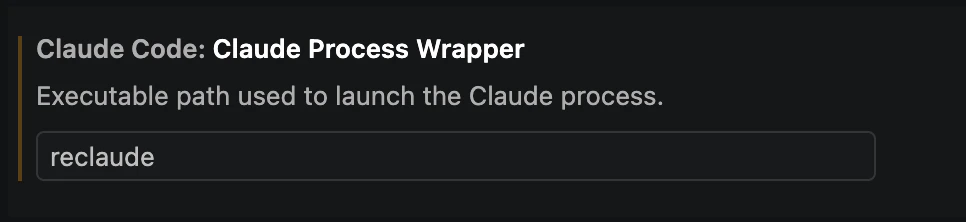
如果你用 VS Code / JetBrains 等官方 Claude Code IDE 插件,需要让插件**通过 reclaude 启动 Claude**,否则请求会绕过 reclaude 直连官方。
1. 打开插件设置(VS Code:`Ctrl/Cmd + ,` → 搜索 `Claude Process Wrapper`;JetBrains:`Settings → Tools → Claude Code`)。
2. 找到 **Claude Code: Claude Process Wrapper**(描述:*Executable path used to launch the Claude process*)。
3. 把可执行文件路径填成 `reclaude` 并保存。
 4. 重启 IDE 让设置生效。
填好之后 IDE 插件就会通过 reclaude 启动 Claude,账号、设备、配额都按你 reclaude 登录的账户走。
这一步是 **官方 Claude Code 插件提供的标准设置项**,不需要装额外扩展。
## 升级和卸载
```bash theme={null}
reclaude update # 检查并升级到最新版
reclaude uninstall # 完整卸载
```
4. 重启 IDE 让设置生效。
填好之后 IDE 插件就会通过 reclaude 启动 Claude,账号、设备、配额都按你 reclaude 登录的账户走。
这一步是 **官方 Claude Code 插件提供的标准设置项**,不需要装额外扩展。
## 升级和卸载
```bash theme={null}
reclaude update # 检查并升级到最新版
reclaude uninstall # 完整卸载
```